Usage Stats
Usage Stats shows how ZCode is being used. It has two tabs: App Usage for local ZCode sessions, and Coding Plan for remote Z.ai / BigModel Coding Plan quota and usage.
App Usage
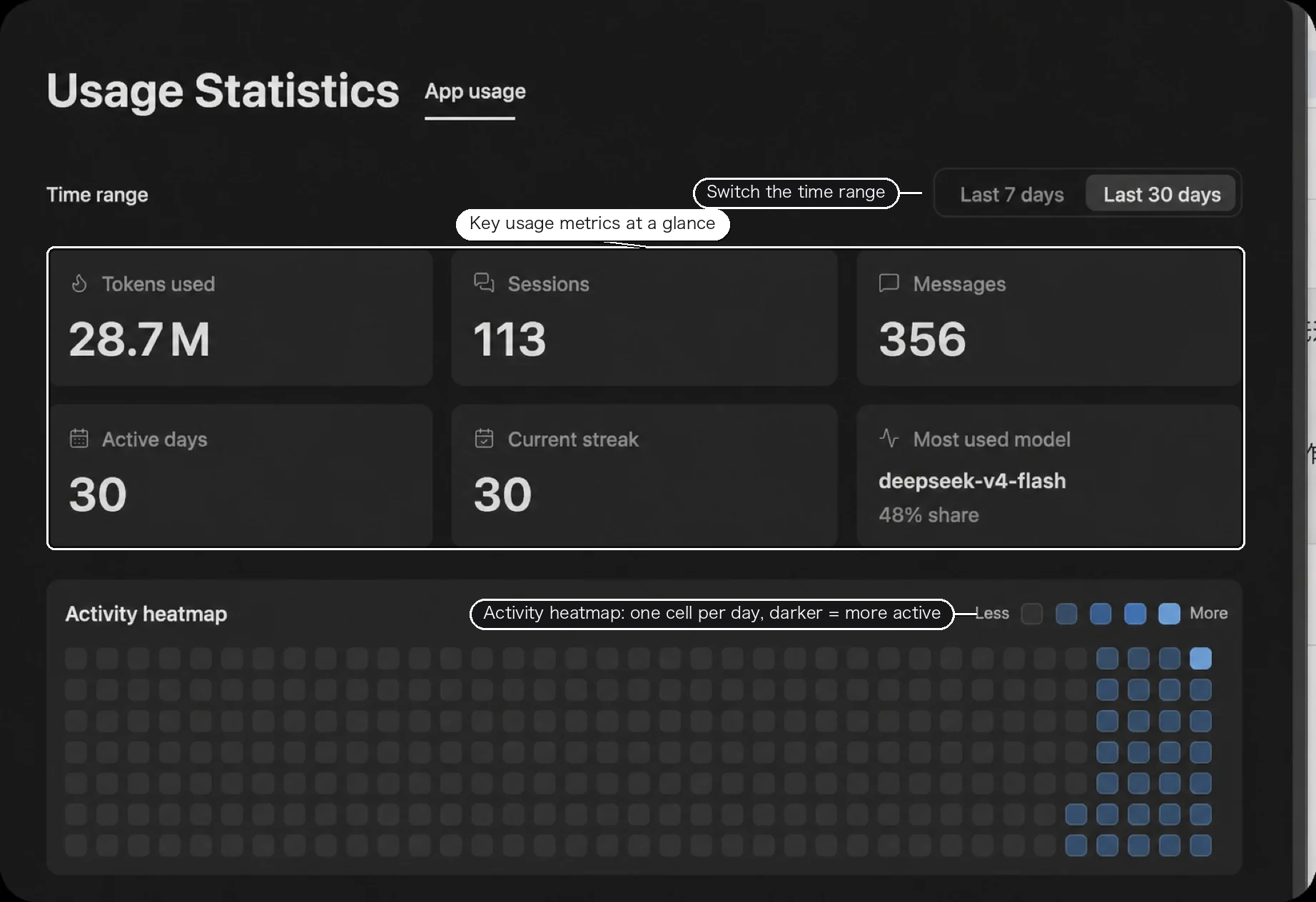
App Usage reads local ZCode session records on the current device. Use it to review recent work volume inside ZCode.
You can see:
- Token usage, sessions, messages, and active days.
- Current streak, longest streak, and peak hour.
- Daily token trends, activity heatmap, and model usage ranking.
Use the range switch in the upper-right corner to compare All Time, Last 30 Days, and Last 7 Days.
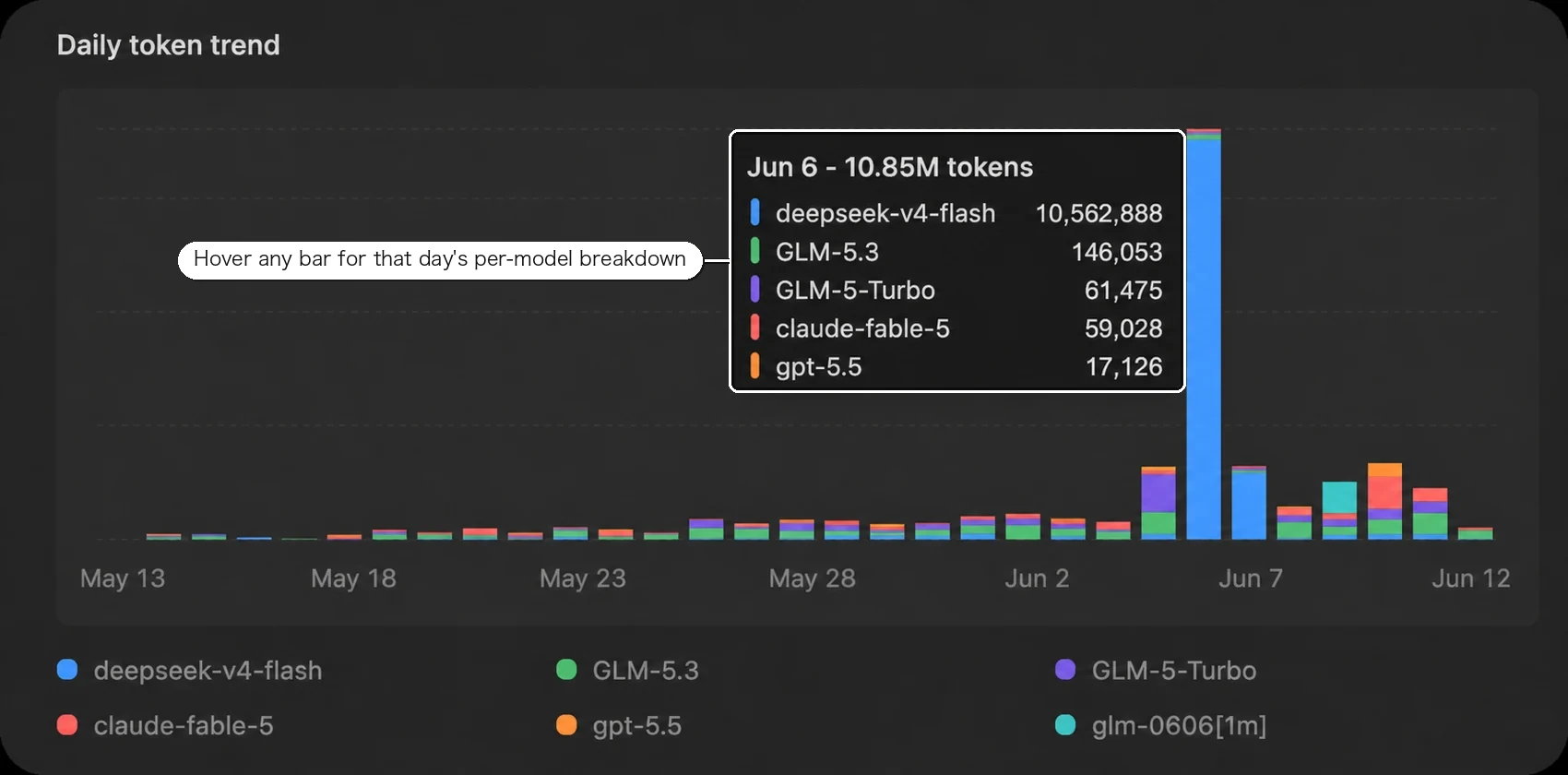
The daily token trend chart supports hover details for each day, including the token breakdown by model. Use it to spot usage spikes and understand which models contributed most on a specific date.
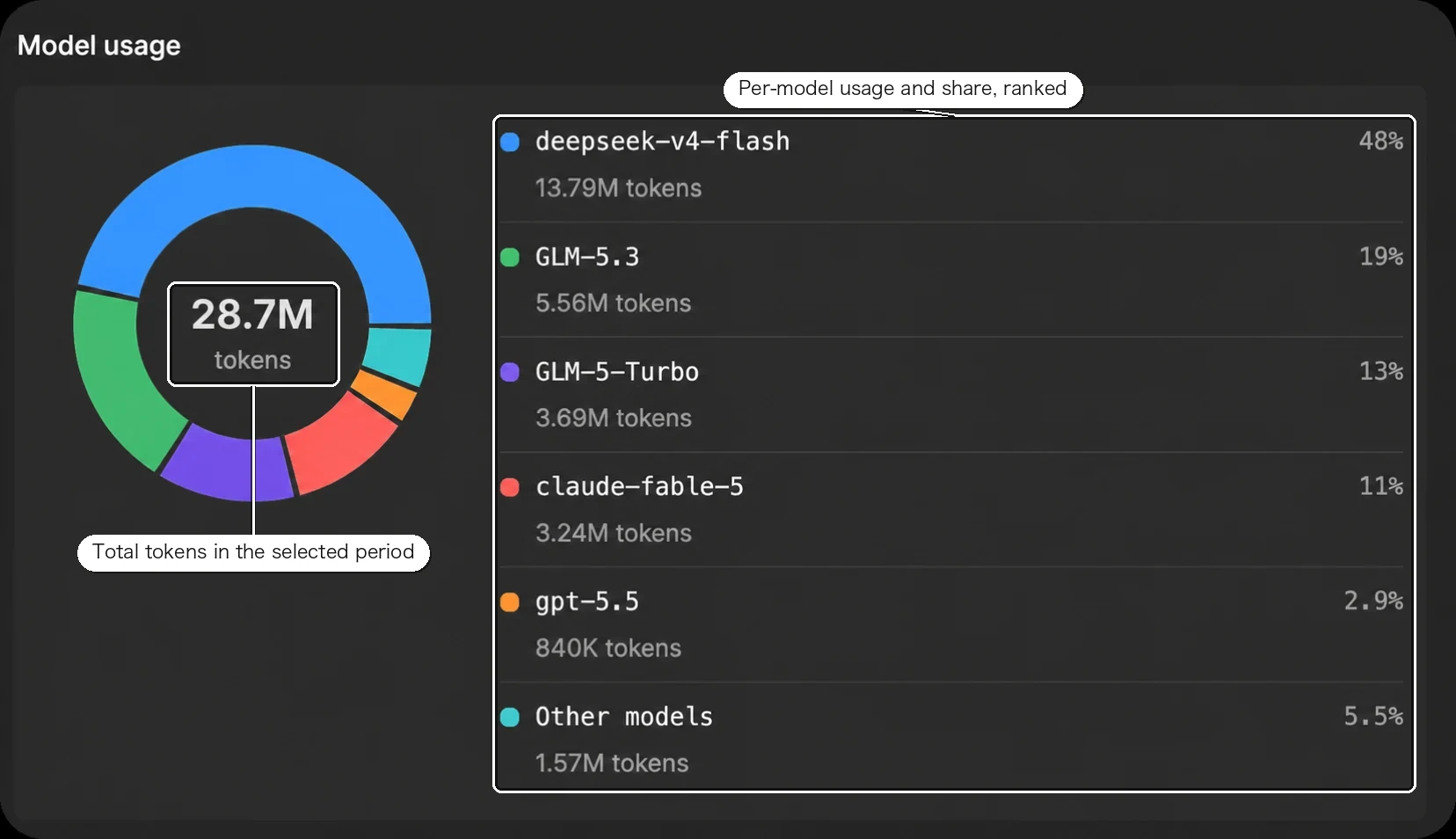
The model usage chart summarizes total tokens in the selected period and ranks each model by token share, making it easier to identify your primary models and compare usage distribution.
Coding Plan
Coding Plan reads remote Z.ai / BigModel Coding Plan statistics. Use it to check quota, model usage, and tool usage. The screenshot below uses Z.ai - Coding Plan as the example; BigModel - Coding Plan is supported in the same view with the same kind of quota and usage breakdown.
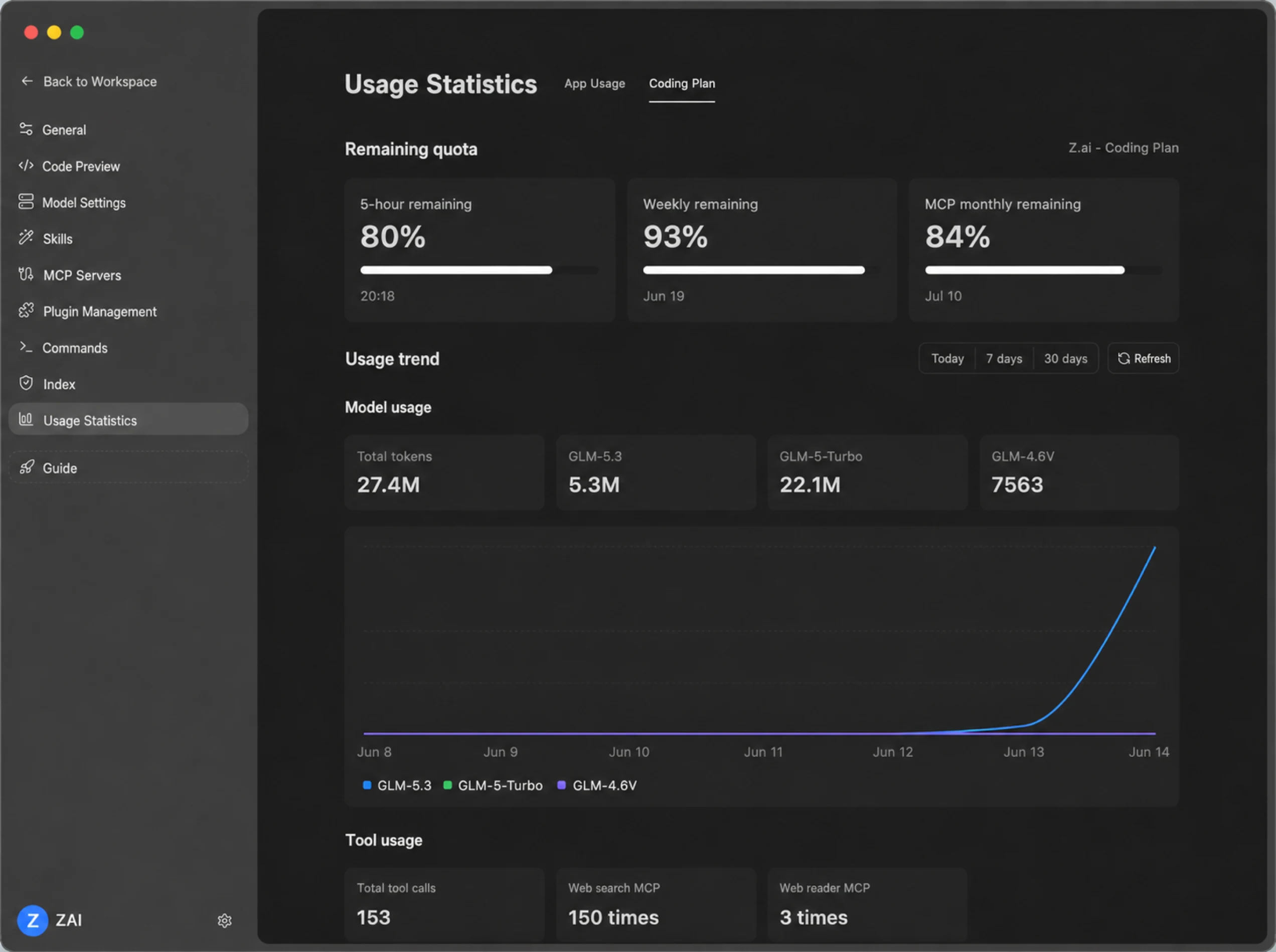
It shows:
- Quota status such as the 5-hour prompt pool, weekly quota, and monthly MCP quota.
- Token consumption for models such as GLM-5.3 and GLM-5.3-Flash.
- Tool calls such as Network Search MCP and Web Reader MCP.
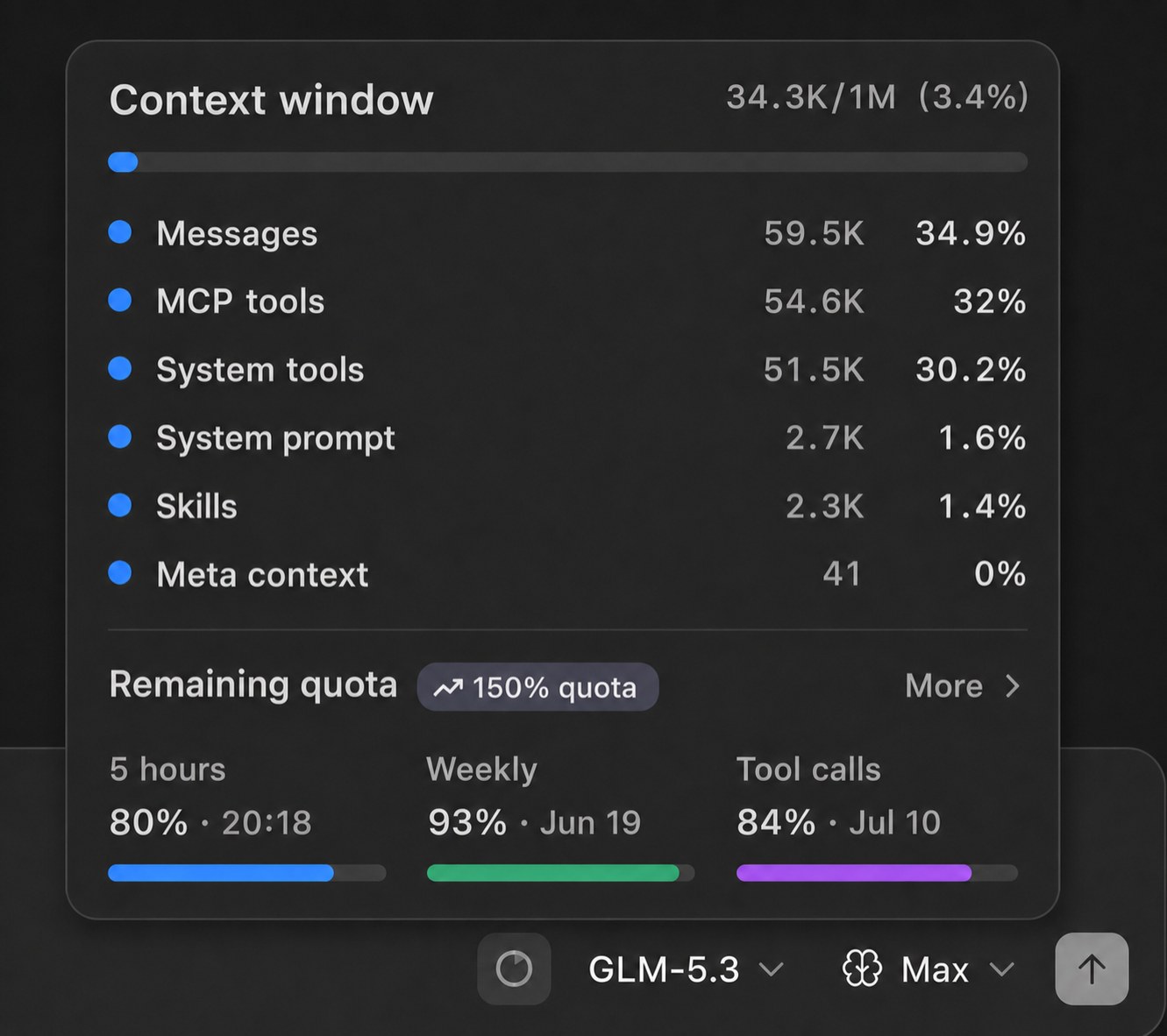
When you expand quota details, ZCode also shows the current context-window breakdown, message and tool usage share, and the remaining quota for 5-hour, weekly, and tool-call pools.
Quota Reset Cards
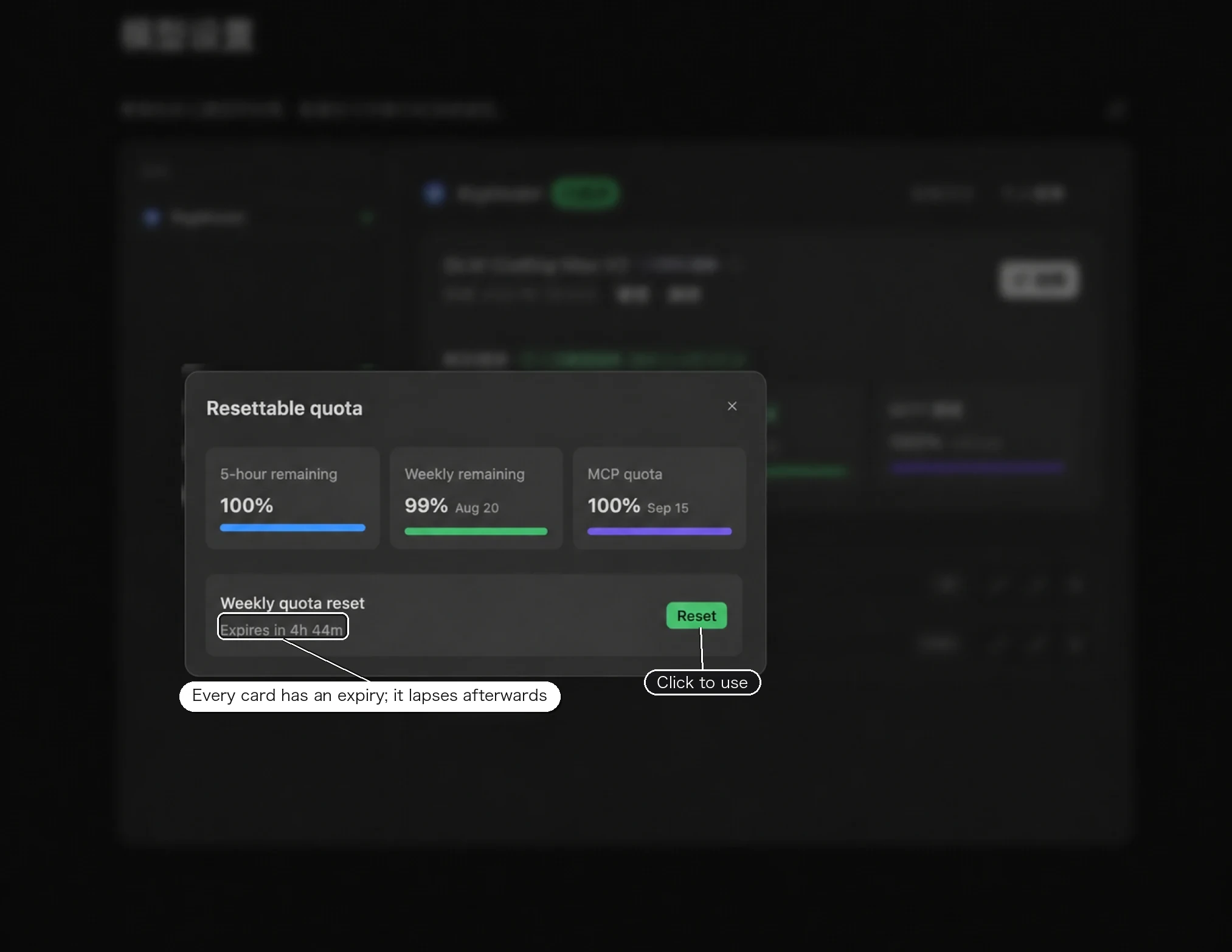
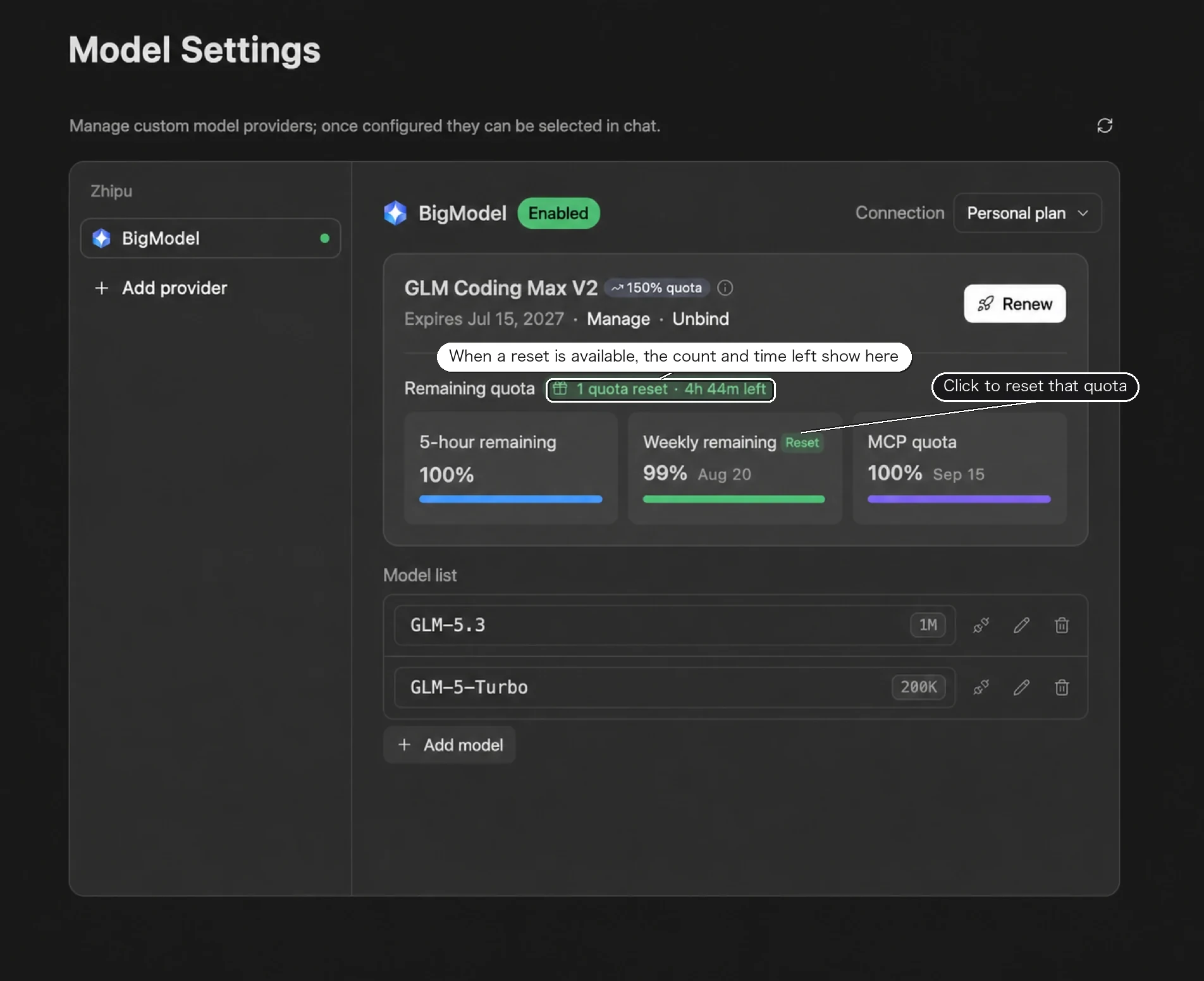
Running out of 5-hour or weekly quota doesn't always mean waiting for the next window. ZCode 3.8.1 and later shows the currently available 5-hour / weekly quota reset opportunities in the app: when one is available, click it in the app to reset that quota. Reset cards issued by other GLM Coding Plan campaigns also appear in the app and work the same way.
Note that reset cards are only issued when you are signed in to ZCode and connected to your account's Coding Plan. You won't receive reset cards if you are not signed in and only use an API key, or if your signed-in account has no Coding Plan (even with an API key configured).
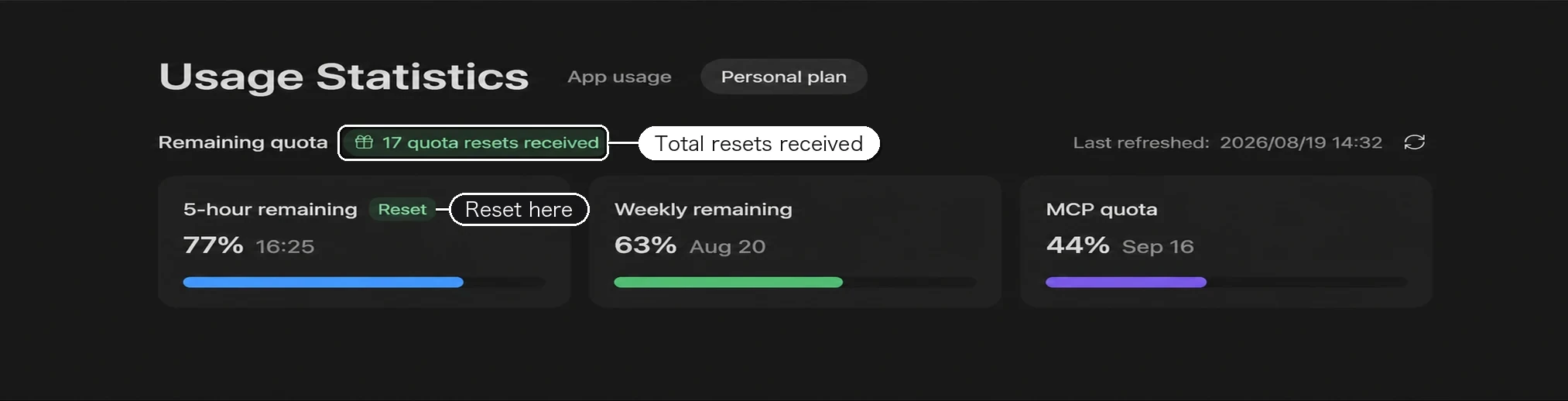
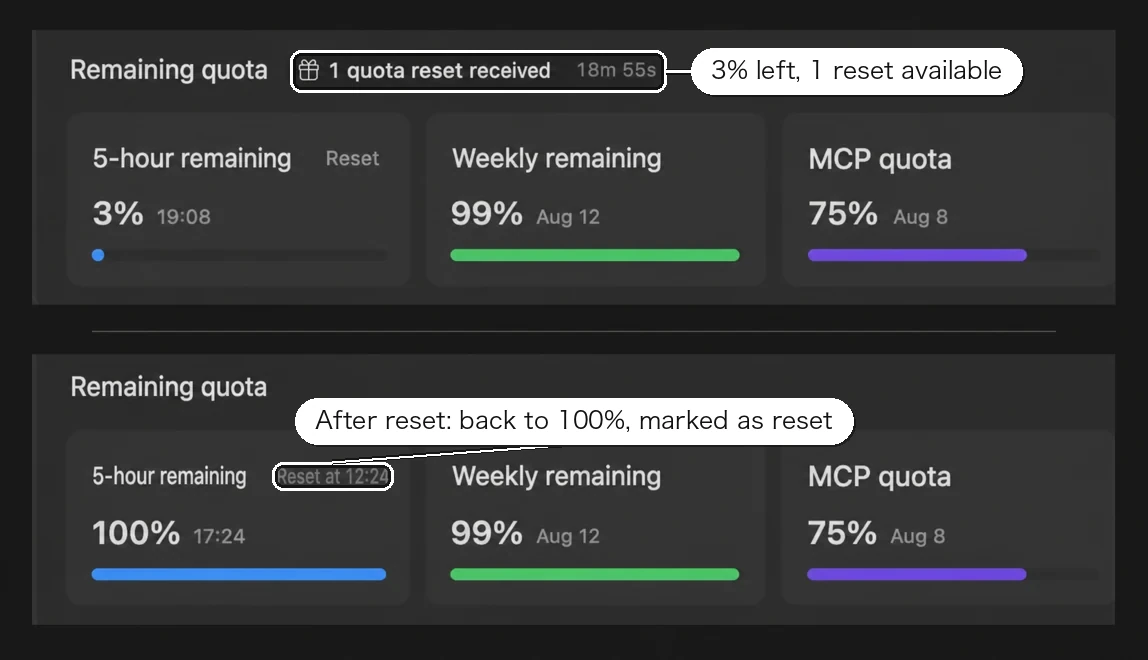
The Coding Plan tab in Usage Statistics shows the same reset button, plus how many resets you have received in total:
After you click Reset, that quota goes straight back to 100% and the card is marked as reset:
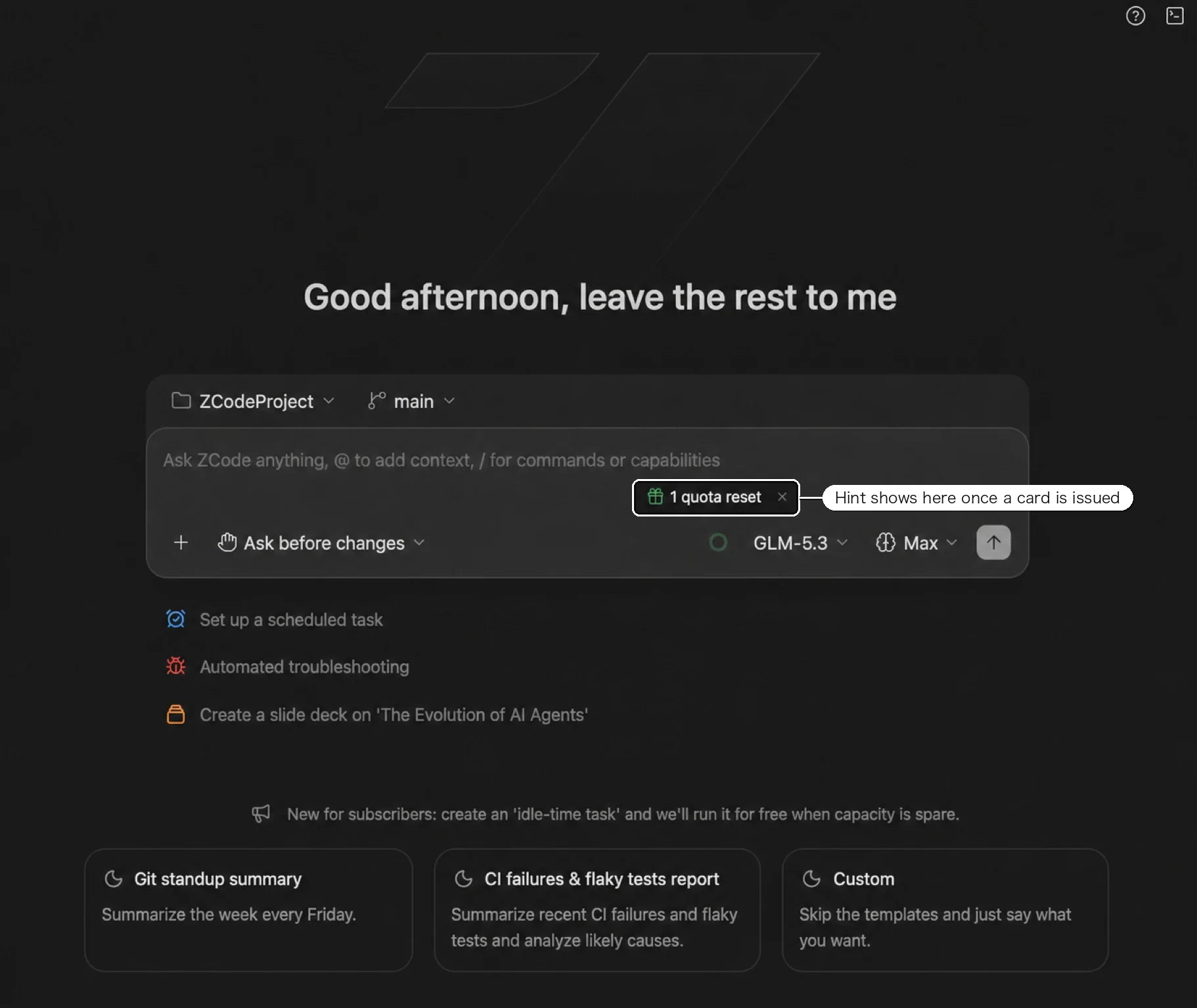
ZCode automatically issues 5-hour quota reset cards to Coding Plan users during off-peak hours, when three conditions are all met: it is currently off-peak, your 5-hour usage is above the threshold, and the daily issue limit has not been reached. Note that the off-peak window for reset cards is not the same as the off-peak window for idle-time tasks; both the window and the usage threshold are dynamic parameters — go by what the app shows. Once a card is issued, a reset-quota hint appears at the bottom-right of the input box:
Reset cards have an expiry: use them within the validity period, or they lapse automatically. Clicking a Reset button opens the "Resettable quota" panel, which lists each card's expiry; if you hold several, the earliest one you received is used first.