Subagents
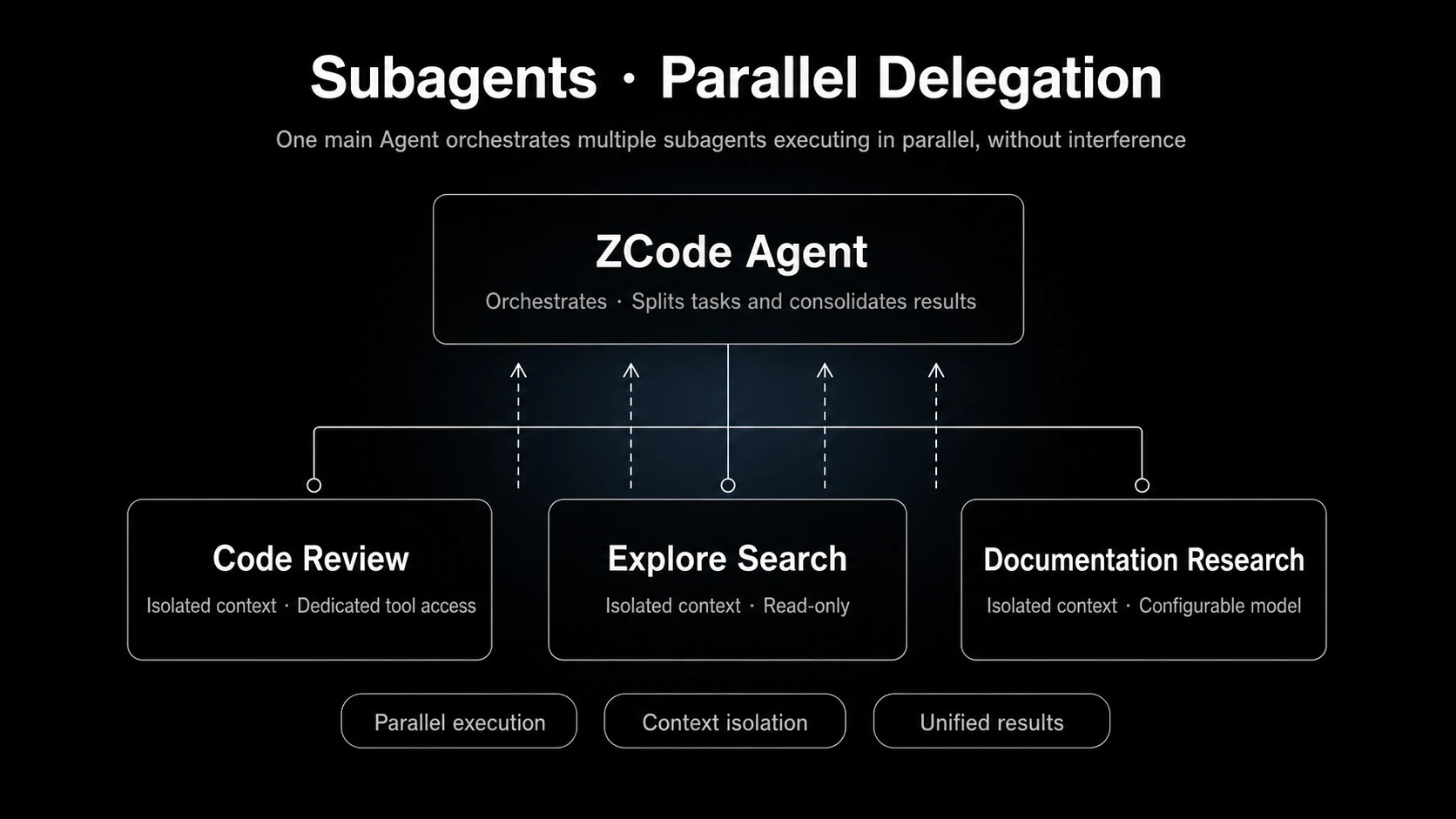
A subagent is a specialized agent that the primary Agent can launch to handle work in its own isolated context, then summarize the results back into the main conversation. ZCode ships with built-in general-purpose and Explore subagents, and you can now define your own user-level subagents from Settings.
When the primary Agent decides a task needs isolated context or parallel research, it launches a subagent through the Agent tool. The subagent works in its own context and reports its findings back so the primary Agent can keep moving.
Built-in: General-Purpose Subagent
general-purpose is the default built-in subagent for broad tasks. It has access to all tools, so it is a good fit when the primary Agent needs an isolated context that can read, edit, run commands, or carry a self-contained piece of work forward.
Good general-purpose tasks include:
- Implementing a small feature or fixing a clear issue independently.
- Organizing files, running verification commands, and reporting results from another context.
- Splitting parallel documentation, code, or configuration work into a separate task.
If a task only needs read-only research, evidence gathering, or call-chain mapping, prefer Explore below.
Built-in: Explore
Explore is a read-only file-search and codebase-research specialist for broad code search, call-chain investigation, architecture discovery, and evidence gathering.
Explore is read-only. It does not create, modify, move, or delete files. It mainly uses read and search tools, such as reading files, matching file names, searching file contents with regex, and, when needed, reading known URLs or searching external information.
Good Explore tasks include:
- Finding where a capability is implemented.
- Mapping module entry points, call chains, and key dependencies.
- Researching related code and risks before making changes.
- Searching across multiple directories, naming patterns, or implementation paths in parallel.
You can ask ZCode to use Explore directly in your prompt, for example:
First use Explore to research this module's call chain, then summarize the main entry points and risks.
Search for where this feature is implemented in read-only mode, and list the related files and evidence.
Custom Subagents (Beta)
Beta — User-level custom subagents are rolling out. The capability and its scope may still change.
You can now create your own subagents from Settings -> Subagents. A custom subagent lets you package a reusable role — a reviewer, a test writer, a docs researcher — with its own model, tool permissions, and instructions, and reuse it across tasks.
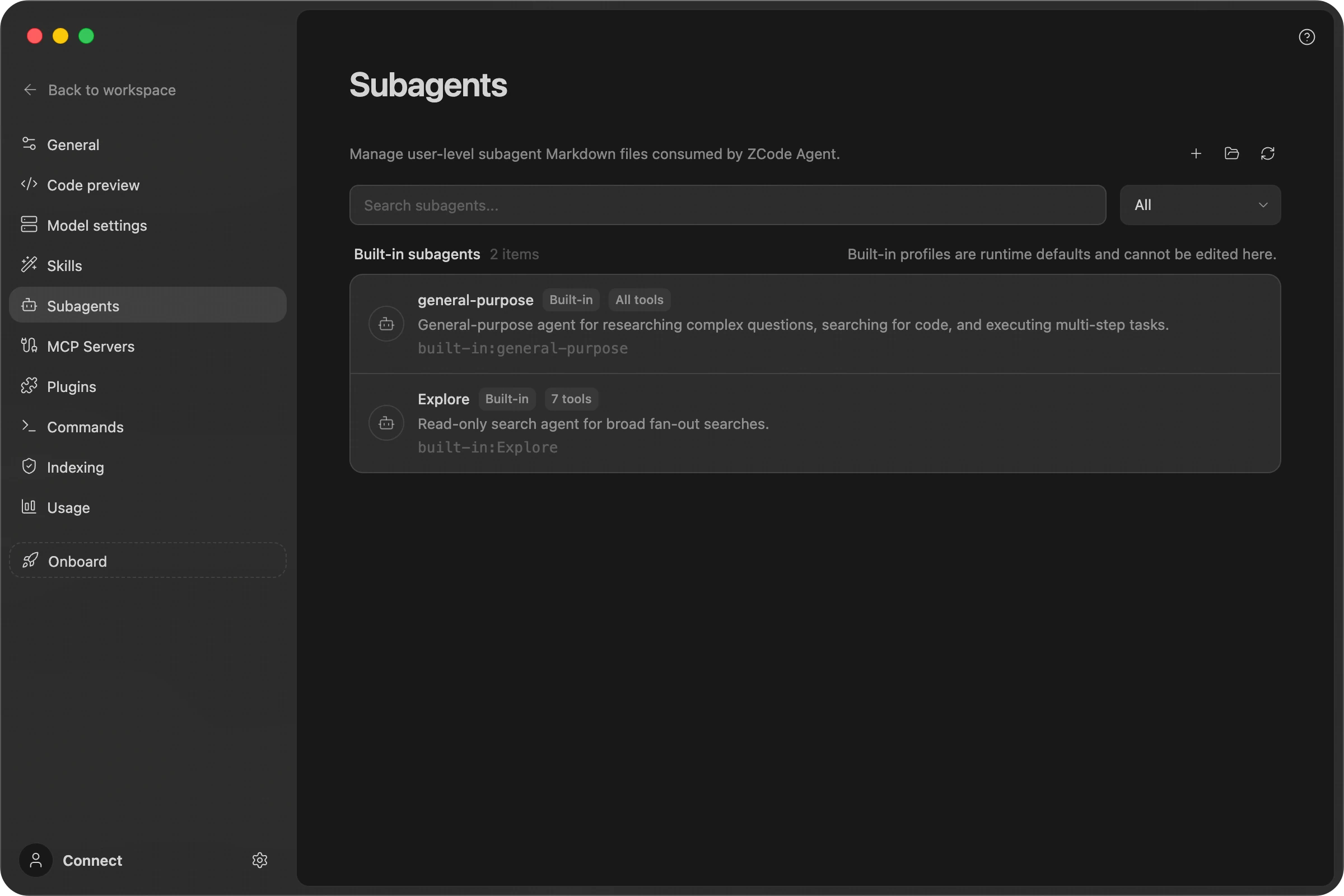
In the Subagents panel you can:
- View the available subagents, including the built-in
general-purpose(the default role, with access to all tools) andExplore(read-only search). - Create a subagent by filling in its name, color, model, thinking effort, description, available tools, and system prompt.
- Edit, delete, enable, or disable the subagents you have created (built-in roles cannot be edited or deleted, but you can assign them a dedicated model and thinking effort).
Create A Subagent
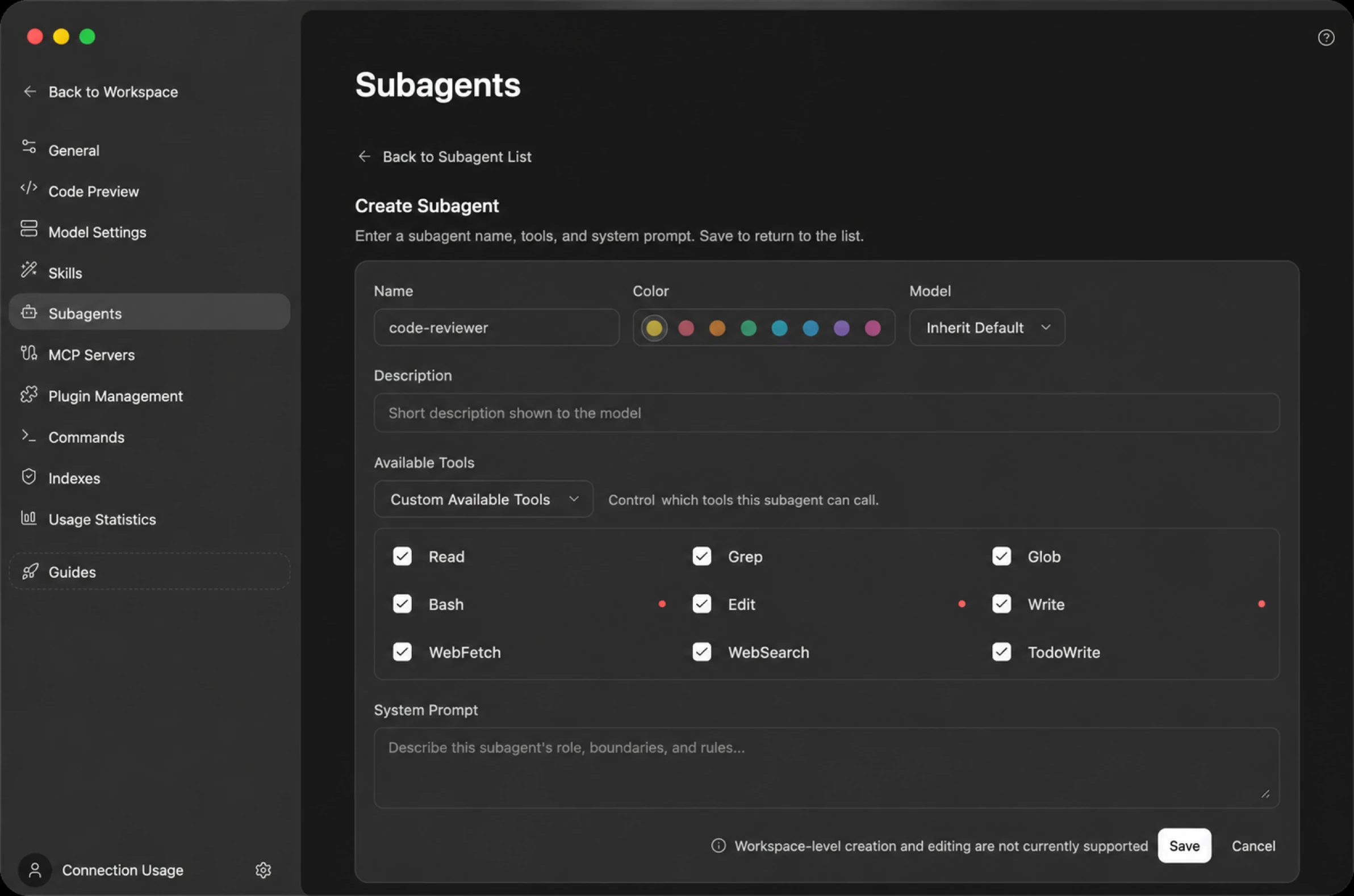
Click New in the top-right corner and configure the reusable role in the form:
| Field | Description |
|---|---|
| Name | The subagent's identifier, such as code-reviewer. |
| Color | A color that distinguishes this subagent in the list and in conversations — an identity marker only, not a status. |
| Model | Choose "Inherit default" (follow the primary Agent's current model) or pick a specific model. |
| Thinking effort | A dedicated reasoning level for this subagent; the available levels depend on the selected model. Only takes effect when a specific model is set — with "Inherit default", the subagent follows the primary Agent's reasoning configuration and this field is ignored. |
| Description | A short summary shown to the primary Agent. It decides when to call this subagent based on this text — the more accurate the description, the more likely it is picked automatically for the right task. |
| Available tools | Controls which tools this subagent can call. "All permissions by default" inherits every tool; "Custom tools" lets you check them one by one (for example, give only Read / Grep / Glob for read-only review; writable tools such as Bash / Edit / Write are flagged). |
| System prompt | Describes this subagent's role, boundaries, and rules. |
When you save, ZCode writes the subagent as a Markdown file under ~/.zcode/agents/<name>.md, and the ZCode Agent runtime loads it on the next run. Once enabled, you can let the Agent pick the subagent automatically, or reference it with @ in the chat box.
Definition File Reference
A subagent definition file is Markdown with frontmatter; the body is the system prompt. Beyond the form fields, the following frontmatter keys are supported when editing by hand (camelCase, case-sensitive):
| Field | Description |
|---|---|
name / description | Required. A file missing either is ignored, with a diagnostic. |
model | A specific model id; inherit or omitting it follows the primary Agent's current model. |
thoughtLevel | Reasoning level (e.g. high). Only takes effect together with a specific model, and the value must be a level that model supports. Note the key is not reasoningEffort — unrecognized keys are silently ignored, with no error. |
color | Color marker (preset colors). |
tools / disallowedTools | Allowed / denied tool lists; see Tools and MCP below. |
maxTurns | Maximum turns per invocation (positive integer). |
injectAgentsMd | Whether to inject AGENTS.md; defaults to on, see AGENTS.md injection below. |
mcpServers | MCP server names this subagent requires (exact match); if a declared server is not connected, the invocation fails immediately. |
When changes take effect: after editing a definition file or changing a subagent's model / thinking effort in Settings, start a new session — running sessions do not hot-reload. The one exception is switching the primary session's model: subagents without an explicit model follow the new model immediately on subsequent calls.
Tools and MCP
Which tools a subagent can use depends on how "Available tools" (the tools field) is configured:
- All permissions by default (
toolsomitted or*): inherits every tool of the primary session, including connected MCP tools. - Custom tools: the list is exhaustive — nothing outside it is available. The checkbox list in Settings only contains built-in tools (
Read/Grep/Glob/Bash/Edit/Write/WebFetch/WebSearch/TodoWrite), so with a custom list all MCP tools become unavailable — the built-inWebSearch/WebFetchare not MCP tools and keep working. - To keep specific MCP tools in a custom list, edit the definition file by hand and add each tool's full name to
tools, in the formmcp__<server>__<tool>. Wildcards (such asmcp__server__*) are silently ignored.
Two more boundaries: a subagent only sees MCP servers that were connected when the primary session started — servers connected mid-session are invisible to it (start a new session to pick them up); and a subagent cannot spawn subagents of its own.
AGENTS.md Injection
Since v3.7.1, subagents inject the user-level ~/.zcode/AGENTS.md and workspace AGENTS.md by default, matching the primary Agent; set injectAgentsMd: false in frontmatter to opt out. The built-in Explore does not inject them. Before v3.7.1, subagents did not inject AGENTS.md at all.
Scope and Limits
- User-level only. The current Beta manages global / user-level subagents stored under
~/.zcode/agents/. Creating or editing workspace / project-level subagents from Settings is not available yet. - Built-in roles cannot be deleted or disabled.
general-purposeandExplorecannot have their prompts edited, be deleted, or be disabled, and their names cannot be reused; you can, however, assign them a dedicated model and thinking effort in Settings. - Background execution is the Agent's call. There's nothing to switch and no separate background management screen — see Foreground and Background Execution.
Foreground and Background Execution
Subagents run in one of two ways:
- Foreground: several launched together run in parallel, and the main task waits for all of them before continuing. Best when you need the results right away.
- Background: the main task doesn't wait and can keep going, or even finish the current turn. Whatever the outcome, the result comes back to the main conversation on its own and the Agent picks up from there. Best for longer investigations that shouldn't block your current train of thought.
For safety, a backgrounded Explore subagent has read-only tools only — reading files, finding them by name, and searching their contents. It can't modify anything.
Terminal commands can also run in the background; see ADE Tools.